How To Integrate Myuser Into GoHighLevel
Connect GoHighLevel to Myuser in 3 minutes with a Private Integration token - contacts, opportunities, and outreach logging sync automatically.
In this blog post, we'll guide you step-by-step through integrating GoHighLevel using a Private Integration token. This integration enables Myuser to automatically read and write contact information, log your outreach on the right records, create opportunities in your pipelines, and keep everything in sync - ensuring smoother and more efficient management of your outreach activities.
The setup takes about 3 minutes. You create the token inside your own GoHighLevel account, you choose exactly what it can access, and you can rotate or delete it at any time.
Step 1: Open Private Integrations
Log in to your GoHighLevel account and open the sub-account (location) you want to connect. Click Settings in the bottom left, then select Private Integrations from the left-hand menu (under Other Settings).
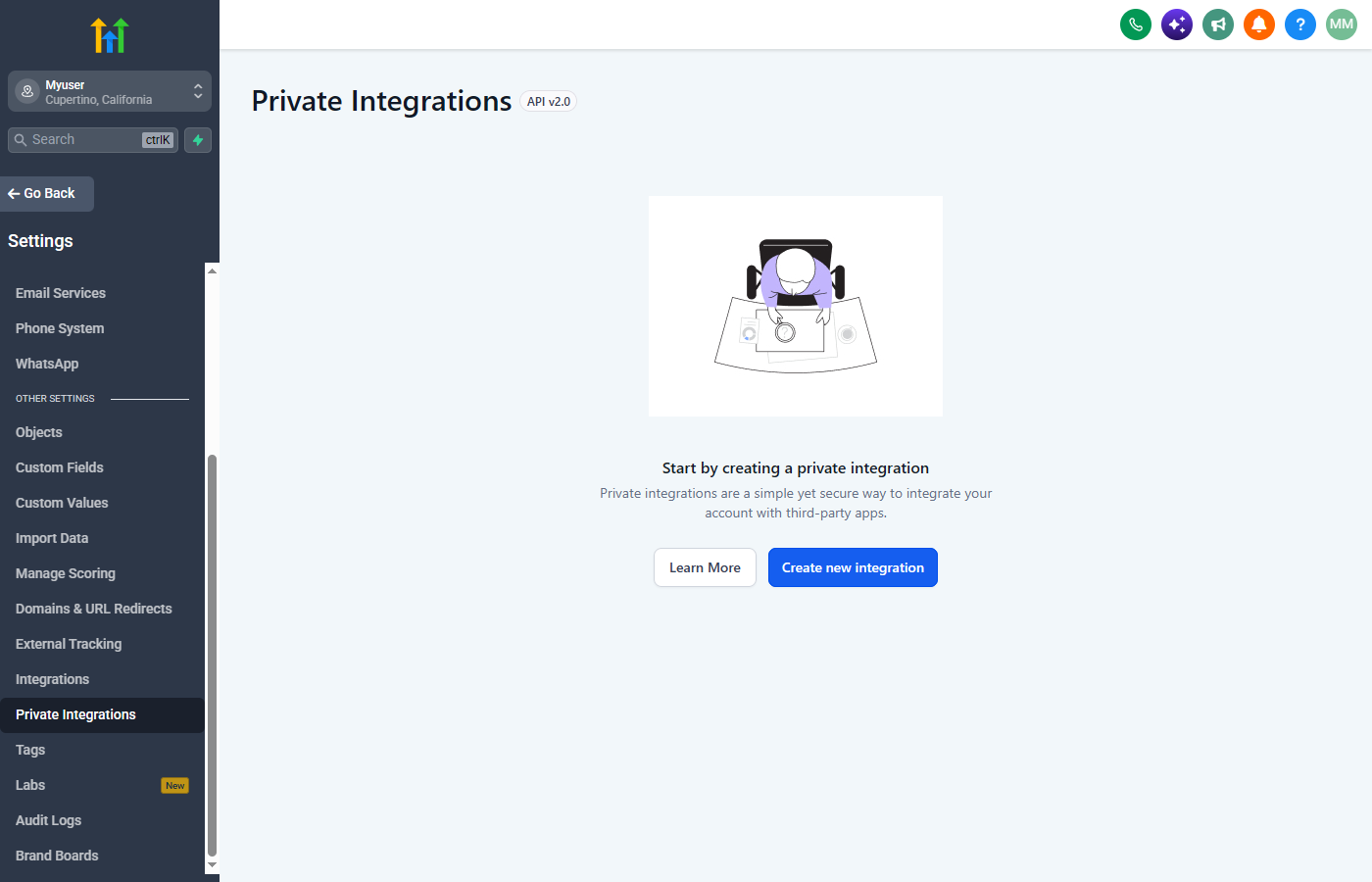
Click Create new integration.
Step 2: Name Your Integration
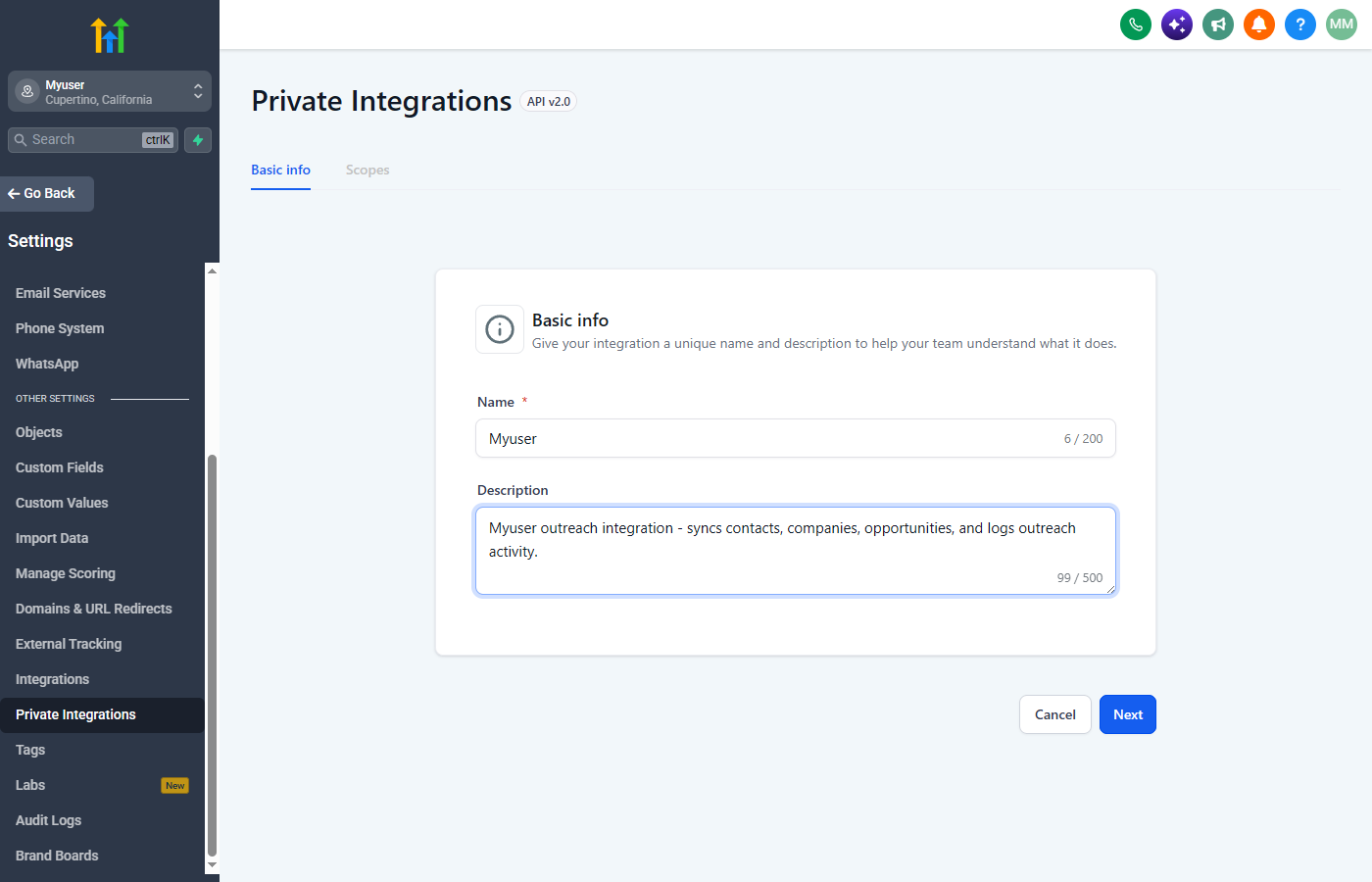
Give it a name you'll recognize - enter Myuser - and optionally a short description like "Myuser outreach integration." Click Next.
Step 3: Select the Scopes
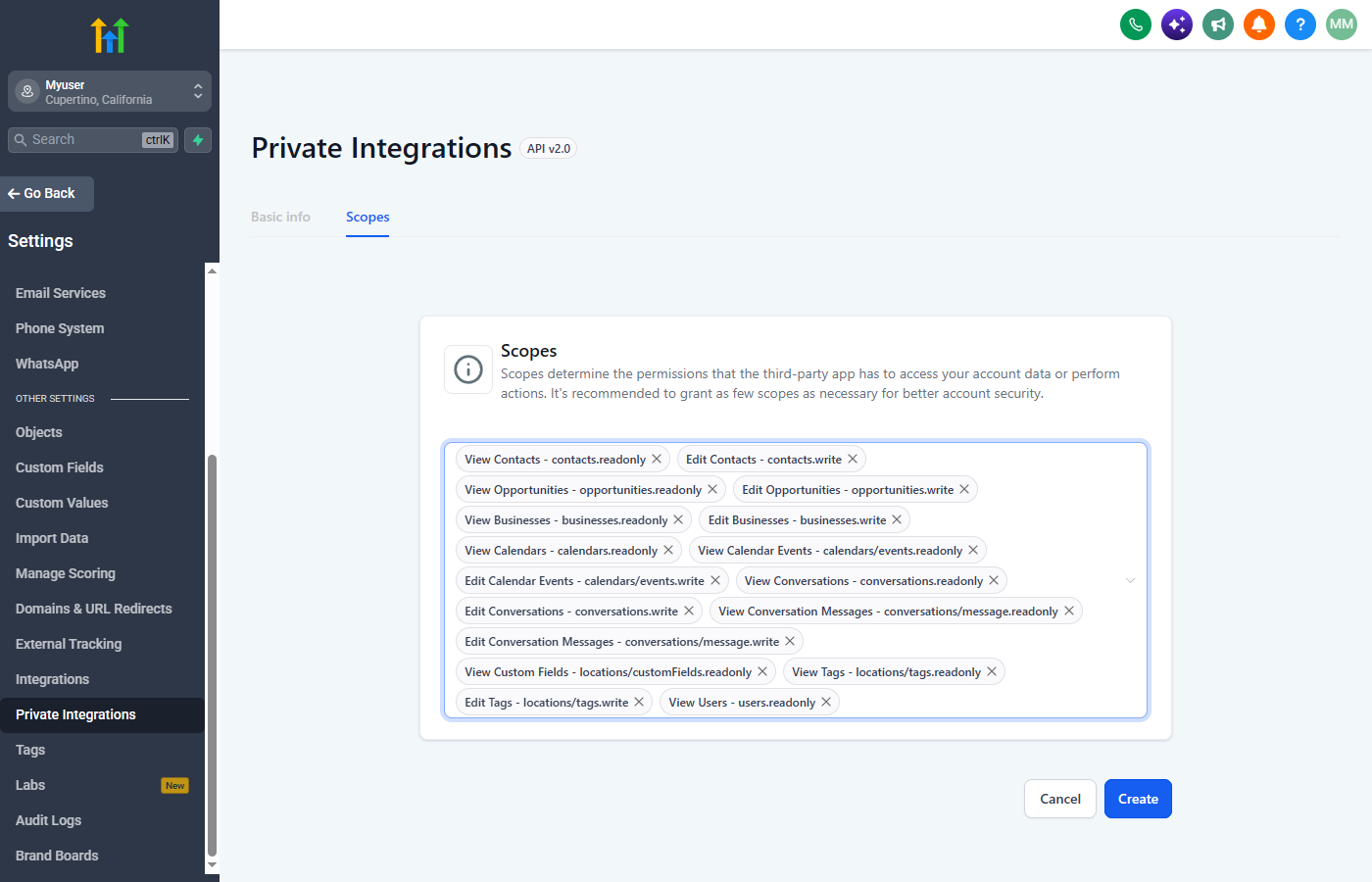
Scopes are the permissions the token has on your account. In the Select scopes field, search for and tick each of the following (the technical name is shown next to each one):
- View Locations (lets Myuser detect which sub-account the token belongs to)
- View Contacts and Edit Contacts
- View Opportunities and Edit Opportunities
- View Businesses and Edit Businesses
- View Calendars
- View Calendar Events and Edit Calendar Events
- View Conversations and Edit Conversations
- View Conversation Messages and Edit Conversation Messages
- View Custom Fields
- View Tags and Edit Tags
- View Users
Including all the listed scopes is important. Without these permissions properly set up, the integration will fail to function as intended.
Read permissions let us check whether a contact or company already exists so we never create duplicates, and read your pipelines so opportunities land in the right stage; write permissions let us create and update contacts and companies, log outreach notes on each contact's timeline, book calendar events, and create opportunities.
Step 4: Copy the Private Integration Token
Click Create. GoHighLevel generates your token - it starts with pit-. Click Copy.
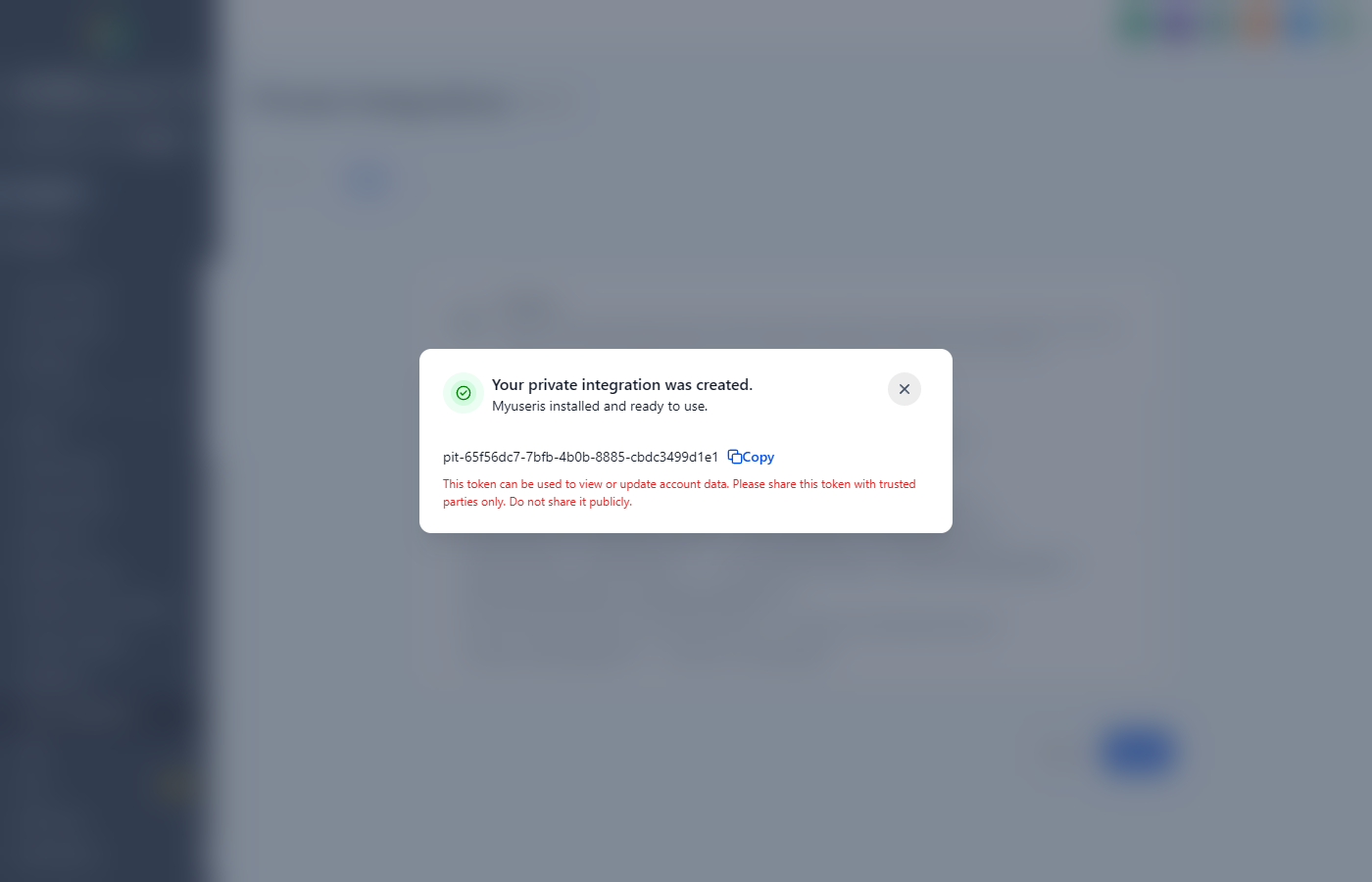
Treat this token like a password: anyone who has it gets the access you just granted.
Step 5: Enter the Token in the Myuser Dashboard
Finally, navigate to the Myuser dashboard. Under the product you wish to integrate with GoHighLevel, paste the pit- token into the GoHighLevel integration field, then click Save Product Changes.
Congratulations - you're all set! Your GoHighLevel integration is now ready, allowing seamless transfer of lead information and faster management of your outreach efforts.
Troubleshooting: "Could not detect your GoHighLevel location"
If the connection test says it cannot detect your location:
- Make sure the View Locations scope is ticked on the integration (Settings, Private Integrations, three-dot menu, Edit, Scopes). Scope changes apply to your existing token right away - no need to re-copy it.
- If the scope is already there, your token was most likely created at the Agency level. Agency tokens cannot use location detection no matter which scopes they have - create the integration inside the sub-account instead (Step 1 of this guide).
- Or simply paste your Location ID into the Location ID field on the Myuser GoHighLevel card and run the test again - with an ID set, detection is skipped entirely. You can find it in your sub-account under Settings, Business Profile (it is also in your browser URL: /v2/location/YOUR_ID/...).
Staying in control
- You can see and manage the token any time under Settings, Private Integrations.
- GoHighLevel recommends rotating tokens every 90 days - when you rotate, both tokens work for 7 days, so just paste the new one into Myuser within a week.
- Deleting the token instantly cuts off all access.
Need Help?
If you have any questions or encounter issues during this integration process, please reach out to our support team - we're always here to assist!
Happy Integrating!